













Every CRM workflow, from a welcome email to a renewal reminder, is built from the same two parts: something happens, and the system does something about it. The CRM workflow automation examples below all follow that pattern, so you can copy each one into whichever CRM you use.
They're ordered roughly by where they sit in a customer's life, from the first form submission to the support ticket that closes months later.
What every CRM workflow is made of
A workflow needs a trigger, an action and a point where it stops. The trigger is what starts it, the action is what the CRM then does, and the stopping point keeps a contact from being messaged forever.
HubSpot's documentation describes five kinds of enrollment trigger: event, filter, webhook, schedule and manual. The distinction that matters most to a beginner is between the first two. A filter trigger can notice that something hasn't happened, such as a form that was never submitted. An event trigger can't, because an event only registers when it occurs.
One more default is worth knowing before you build anything. In HubSpot, a record enrolls only the first time it meets the trigger unless you configure re-enrollment, which is why a workflow can seem to "stop working" for a returning customer.
Seven CRM workflow automation examples worth copying
Each example below lists what starts it and what the CRM does next. Nothing here depends on a particular product, though a few of the details come from HubSpot's documentation.
1. Assign a new lead and create a task
When a visitor submits a web form, the CRM saves the lead, puts it in the sales queue and assigns it to a person. That person gets a task with a due date, not just a notification.
The task matters more than it looks. HubSpot's own guide to territory division and lead rotation points out that a notification can be dismissed, while a task stays open until someone completes it. Its example sets the due date one day out.
The same guide recommends rotating leads to a team rather than to named individuals. Team membership changes then flow through automatically, whereas individual assignment means editing the workflow every time someone joins or leaves.
2. Send a welcome message the moment someone opts in
The trigger is a signup or opt-in. The action is a welcome email, which Nutshell's list of CRM automation examples says should go out within minutes.
This is the easiest workflow to build and the one most worth getting right first, because it's the first message a new contact ever receives from you. If it's slow or generic, everything after it starts from behind. For a longer sequence, our walkthrough of client onboarding automation with GoHighLevel shows how the welcome step feeds into the rest.
3. Score leads and flag the hot ones
When a lead's data or behaviour changes, the CRM scores it, ranks it on the rep's dashboard and flags the strongest. Nutshell describes this as lead prioritisation.
HubSpot's version is a qualification workflow. Behaviours that signal interest, such as viewing the pricing page, requesting a quote or attending a company event, set the contact's lifecycle stage to Marketing Qualified Lead. That change can then enroll the contact in the rotation workflow from example 1, so scoring and assignment chain together.
4. Move deals through the pipeline and nudge the next step
A defined event, such as a meeting being scheduled or a proposal being sent, advances the deal one stage and updates its next action. Entering a stage can also trigger a reminder with the right resources attached, repeating if nobody acts on it.
Be selective about which events move a deal. Nutshell lists an opened email among the possible triggers, but we'd advance a stage on a booked meeting or a sent proposal instead, since an open tells you very little about whether the buyer has decided anything.
5. Remind people before appointments
When an appointment is 24 to 48 hours away, the CRM sends an email or text reminder. Nutshell suggests an optional second reminder one to two hours before.
Two reminders at different distances do different jobs. The earlier one gives someone time to reschedule, and the later one catches the person who simply forgot. If you build this in GoHighLevel, our guide to GoHighLevel workflow triggers covers the triggers that start it.
6. Re-engage quiet customers and chase renewals
Two triggers cover most of the retention work. When a customer's activity drops below a threshold for a set number of days, the CRM sends a check-in or re-engagement email. When a subscription is two to four weeks from expiring, it sends a renewal reminder and can notify customer service as well.
The thresholds are yours to choose, and they should be set from how your own customers behave. A fourteen-day silence means one thing for a weekly-use product and something quite different for an annual contract.
7. Follow up after a ticket closes, then ask how it went
When a support ticket is marked resolved, the CRM sends a check-in 24 to 48 hours later. If the reply is negative, the ticket reopens.
A survey can sit alongside it. Nutshell describes sending a net promoter score survey after a purchase or at a set interval, categorising the responses and routing detractors to someone for follow-up. The routing is the valuable part, because a low score nobody sees is just a statistic.
Where these workflows go wrong
Nutshell's best-practice advice is blunt on one point: overly complex automations reduce adoption and return on investment, so keep workflows simple. Build one job per workflow and chain them, the way the scoring and rotation examples above do, rather than writing one long branching monster that only its author understands.
Setup has its own traps. In HubSpot, a workflow saved without a trigger becomes manual-enrollment only, and a trigger can be refined by only one criterion, so a page-view rule can't be narrowed by both date and view count.
Territory rules deserve particular caution. HubSpot's lead-rotation guide warns that defining territories gets messy quickly when boundaries are based on postal codes or many countries.
Data quality is the quiet one. Nutshell recommends cleaning contact data on a regular schedule and fixing or removing records with bounced emails, since every workflow above depends on the contact fields being right.
Whatever you build, decide in advance what ends it. A reminder sequence should stop once the person books, and a nurture sequence should stop once they reply. That's our own rule of thumb rather than a vendor requirement, but it's the difference between automation that helps and automation that annoys.
Putting several workflows into one system
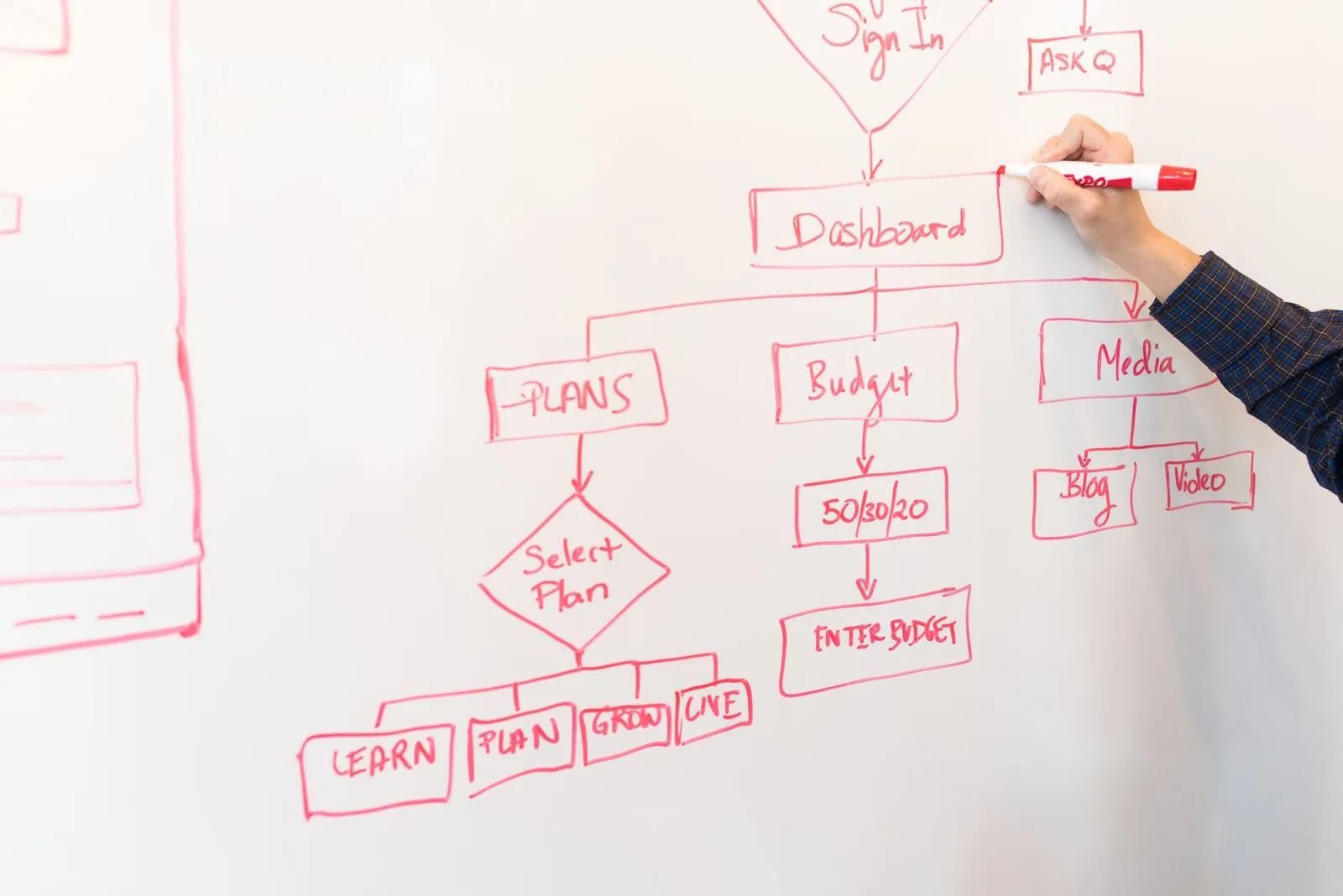
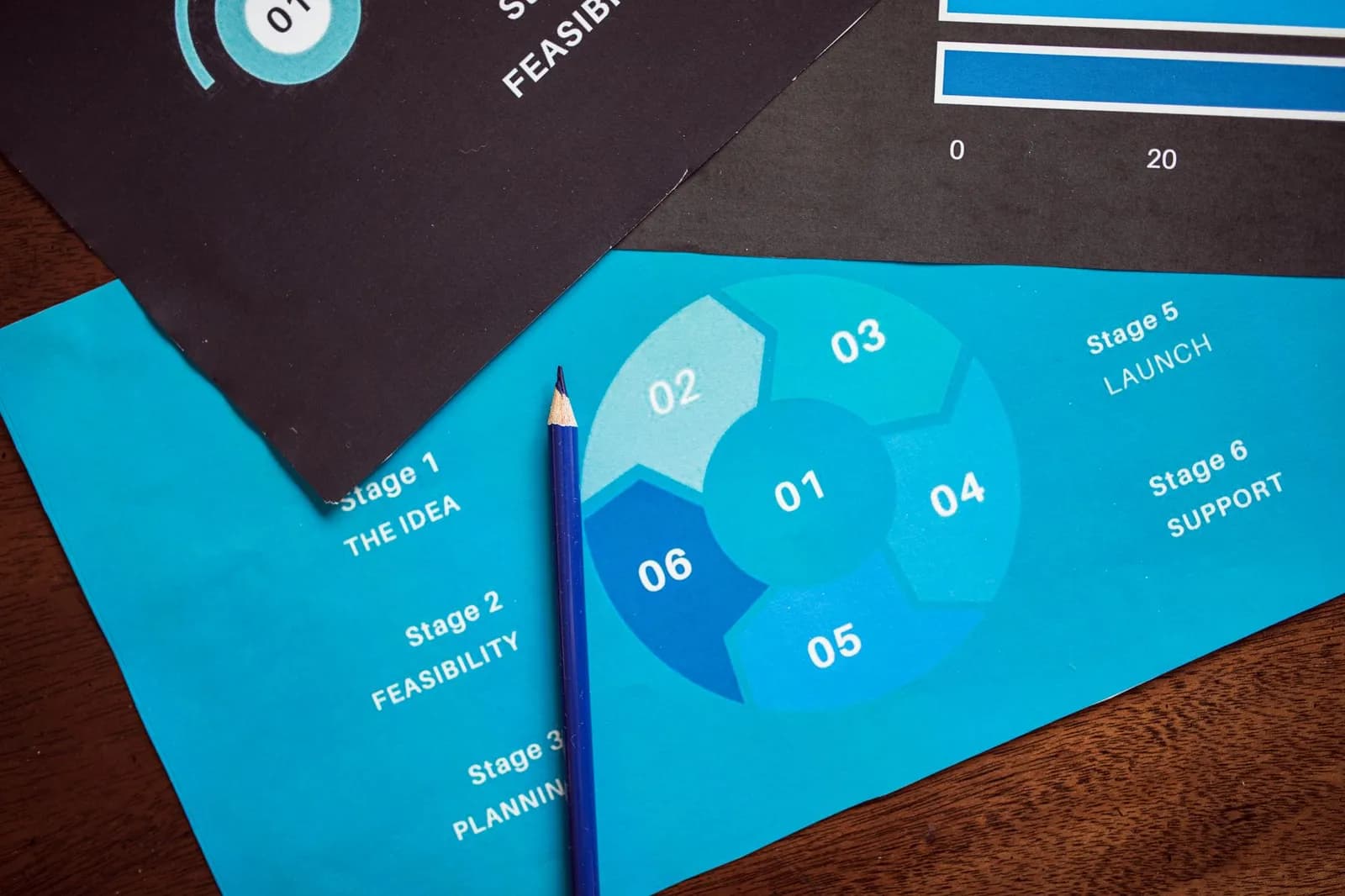
Photo by Christina Morillo on Pexels
These seven work better connected than separate. A form submission creates the lead, scoring flags it, rotation assigns it, a task chases it, and the pipeline stages carry it to a proposal.
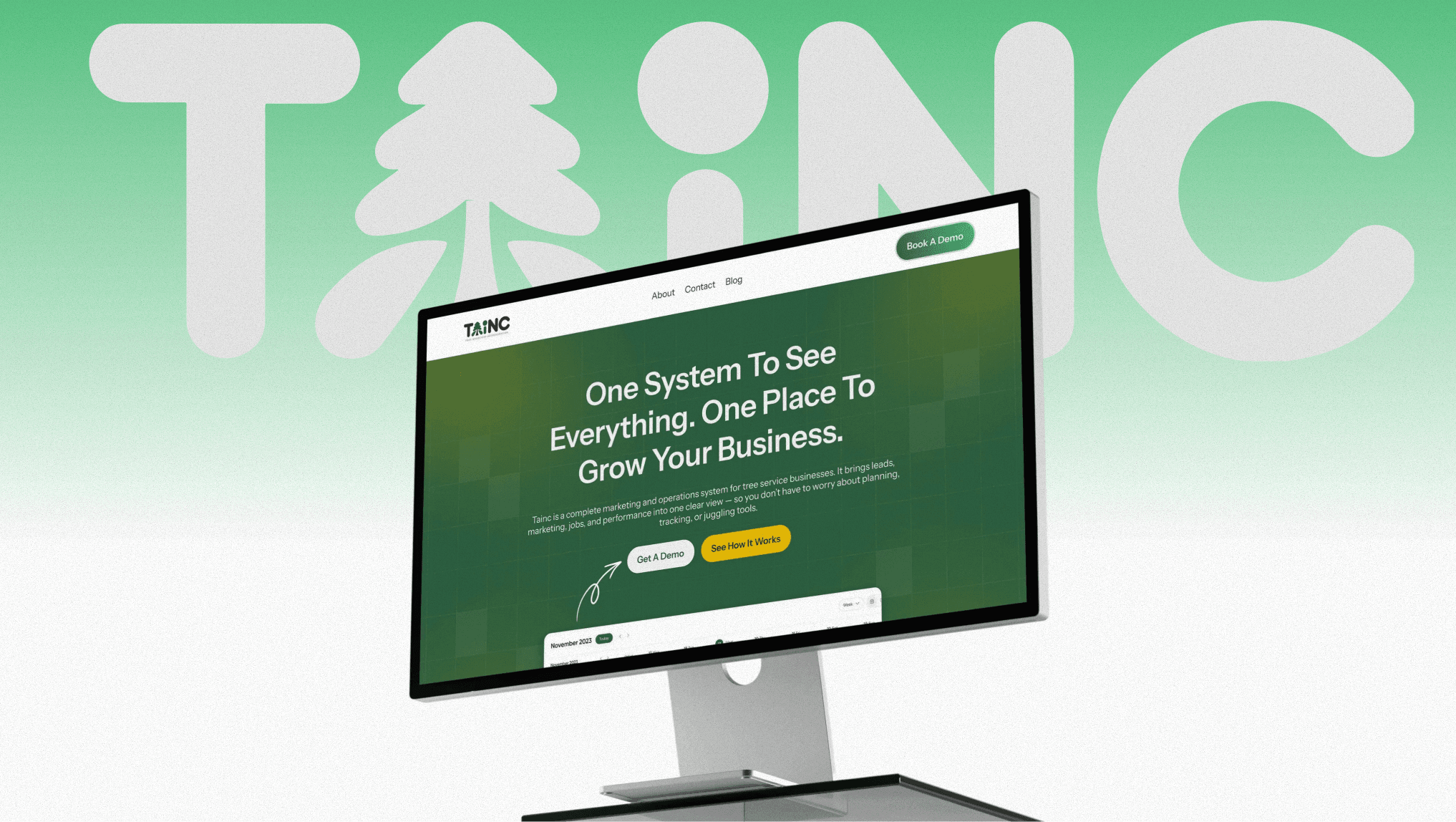
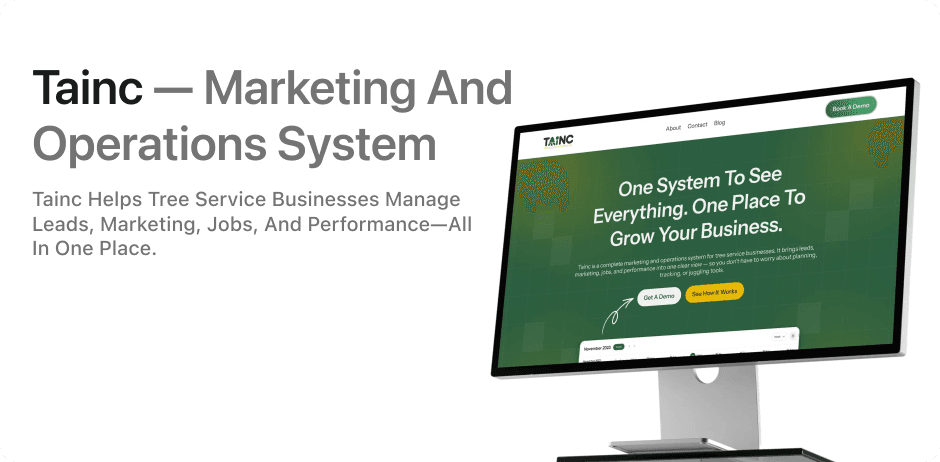
When we built the platform for TAINC, the tree service company's problems included no automated follow-up system and leads lost to slow manual response. The result was one dashboard combining lead capture, crew scheduling, AI-assisted proposals and billing, which you can read about in the TAINC case study.
If you're starting from a single CRM, the usual order is lead assignment first, then the welcome message, then reminders. For a wider catalogue of what's possible in one tool, see what you can build with GoHighLevel automation workflows, or look at how our AI and automation service handles the setup for you.
Frequently asked questions
Why did my workflow not run for a contact who came back?
In HubSpot, records enroll only the first time they meet the trigger by default. You have to configure re-enrollment for filter-based triggers, or choose to enroll on each occurrence for event-based ones.
Should I assign leads to a person or to a team?
HubSpot's lead-rotation guide recommends a team where possible, because membership changes flow through automatically. Rotating to individual users means updating the workflow whenever someone joins or leaves.
How complicated should my first workflow be?
Keep it simple. Nutshell says overly complex automations reduce adoption and return on investment, and that a team already familiar with automation should adapt within two to three weeks.
Can a workflow tell that a contact did not do something?
Only with a filter trigger. HubSpot explains that event triggers register only when something happens, so to catch a form that was never submitted you use a filter or an if/then branch inside the workflow.
Cover photo by RDNE Stock project on Pexels